
Amazon FBA (Fulfillment by Amazon) has made it easier than ever for sellers to grow their businesses. Since Amazon manages storage, packaging, and shipping, sellers don’t need to invest in warehouses or logistics. It even reduces the burden of handling customer service by amazon removal order.
However, these advantages come at a cost.
As an FBA seller, you are required to pay monthly storage fees. In addition, Amazon charges for storing your inventory in its fulfillment centers. If your products remain unsold for extended periods, particularly over a year, long-term storage fees will apply.
In simple terms, slow-moving inventory can quickly turn into a financial loss.
For items stored longer than 12 months, Amazon charges either $6.90 per cubic foot or $0.15 per unit—whichever is higher. These charges are applied regularly and can accumulate rapidly over time.
Because of this, it often makes sense to remove inventory that isn’t selling well. The process is straightforward and can be done by creating a removal order. Let’s walk through how it works.
Closing or Deleting Product Listings
When you decide to remove or dispose of inventory from Amazon’s fulfillment centers, it’s also recommended to manage the related product listings. There are two main options available:
Closing a listing:
This option removes the product from your storefront without deleting its data. The listing becomes inactive, but all information such as sales history, SKU, and product details remains intact. You can reactivate it anytime.
Deleting a listing:
Deleting a listing permanently removes all associated data, including SKU and product information, from your inventory dashboard. Although some sales data may still exist in reports, the listing itself cannot be recovered after 24 hours. This option should only be used if you’re certain you won’t sell the product again.
To close or delete listings, follow these steps:
- Log in to Seller Central and go to the “Inventory” tab
- Click on “Manage Inventory”
- Select the listings you want to update
- Click “Actions” and choose either “Close Listing” or “Delete Product and Listing”
If you want to relist a closed product:
- Go to the inventory page and select “Inactive”
- Click “Actions” next to the item
- Choose “Relist”
Once your listings are handled, you can proceed with removing inventory from Amazon warehouses.
How to Remove Inventory from Amazon FBA
Removing or disposing of inventory isn’t free, but it can help you avoid higher long-term storage fees. Amazon allows you to either return, dispose of, or liquidate your inventory.
Why should you consider removing inventory?
Even without long-term storage fees, keeping unsold inventory in Amazon’s warehouses still costs money. If your sales aren’t covering these expenses, removing the stock is often the smarter financial decision.
Here’s how to do it step by step.
1. Create a Removal Order
You can initiate a removal order in two ways:
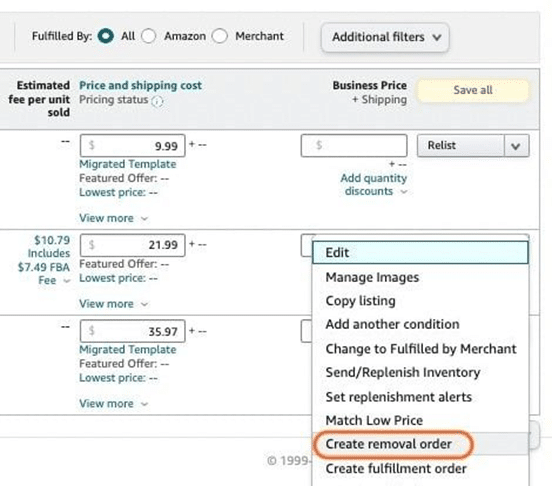
- From the “Manage Inventory” page
- From the “Recommended Removal” report (for items nearing long-term storage fees)
On the “Manage Inventory” page:
- Select the items you want to remove
- Click the “Action” dropdown
- Choose “Create Removal Order”
From the “Recommended Removal” report:
- Click “Begin Removal Process”
Keep in mind that you may need to create separate removal orders if the report spans multiple pages.
Once you start the process, you’ll have three options:
- Dispose: Amazon discards the inventory for a small fee
- Return: Items are shipped back to your address (usually more expensive)
Note that inventory under removal cannot be used for order fulfillment.
2. Add Address and Order ID
If you select the return option, you’ll need to provide a valid shipping address.
You’ll also need to assign an order ID. If you don’t create one, Amazon will generate it automatically. It’s important to keep this ID for tracking purposes.
3. Select Products (SKUs)
You can add more items to your removal order by searching using:
- Product title
- ASIN
- FNSKU
- MSKU
After finding the items, select them and click “Add Selected” to include them in the order.
4. Enter Quantity for Removal
Next, specify how many units you want to remove. This includes both sellable and unsellable inventory.
Make sure the quantity entered does not exceed the available stock eligible for removal.
5. Review Your Order
Before finalizing, carefully review all the details:
- Order ID
- Removal method
- Shipping address
- Item quantities
You can also check the estimated removal fees. If needed, you can edit contact details or the delivery address at this stage.
6. Confirm the Removal Order
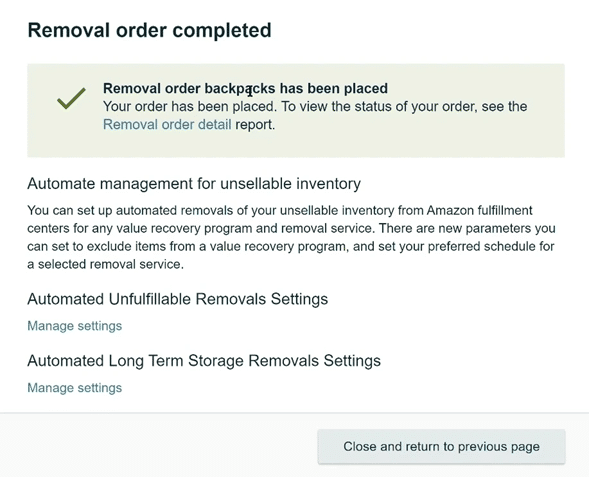
Once everything is verified, confirm your removal order.
Typically, orders are processed within 10 to 14 days. However, during peak seasons, it may take up to 30 business days.
After dispatch, the shipping carrier may contact you to arrange delivery. If you fail to receive the shipment, Amazon may classify the inventory as abandoned and dispose of it without reimbursement.
Removal Order Fees for Amazon FBA
Removal fees vary based on size and weight:
- Small standard items start at around $0.25 per unit
- Larger or heavier items have higher fees
- Oversized items may incur additional charges per pound
Special handling items such as apparel, jewelry, or hazardous goods may also have different pricing.
Canceling a Removal Order
You can cancel a removal order only if it is still in “Pending” or “Planning” status.
To cancel:
- Go to the “Manage Orders” section
- Use “Advanced Search”
- Enter the removal order ID
- Click “Cancel This Order”
Orders already in “Processing” cannot be canceled.
Automating Removal Orders
Amazon also allows you to automate removal for unsellable or aging inventory.
If automation is set before the 15th of the month, you can avoid storage fees, as Amazon evaluates inventory on that date.
What is Unfulfillable Inventory?
Unfulfillable items are products deemed unsellable by Amazon due to damage or condition issues. Sellers are notified when this happens.
If no action is taken within 30 days, Amazon may automatically dispose of these items.
Steps to Automate Removal:
- Go to “Settings” in Seller Central
- Select “Fulfillment by Amazon”
- Click “Automated Unfulfillable Removal Settings”
- Enable automation
- Choose between Return or Dispose
- Set a schedule (immediate, weekly, or bi-monthly)
- Enter your email and (if applicable) return address
- Click Update
You can also automate removals for long-term storage inventory by setting price ranges for items you want removed.
Checking Removal Order Costs
You are only charged after the inventory is removed or shipped.
To track costs:
- Go to the “Payments” section
- Open “Transaction View”
- Select “Service Fees”
- Set your preferred date range
- Look for entries labeled “FBA Removal Order”
Final Thoughts
Removing inventory from Amazon FBA is sometimes necessary for maintaining profitability. Whether it’s due to poor sales performance, seasonal demand, or high storage costs, clearing out inventory can save you money.
Amazon provides a simple and efficient process for removal orders, and automation features make ongoing inventory management even easier.
Staying on top of your inventory ensures better cost control and healthier profit margins—something every successful seller should prioritize.