Amazon product promotions remain an effective way to encourage sales and improve product visibility. When used with the right strategy, discount promotions can help generate additional sales while potentially supporting improvements in organic keyword rankings.
Promotions can be particularly useful when launching a new product and trying to generate initial sales momentum. Some of the potential benefits of running product promotions include:
- Increasing product sales
- Creating more opportunities to receive customer feedback and reviews
- Helping improve organic keyword rankings through increased sales activity
One of the most commonly used promotional strategies on Amazon is offering a percentage or fixed amount off the product price. To provide this type of discount, sellers can create a Money Off promotion through their Seller Central account. Follow the steps below to set up a promotional discount for your Amazon products.
How to Set Up Amazon Product Promotions in Seller Central
Step 1: Create Your Amazon Product Promotion
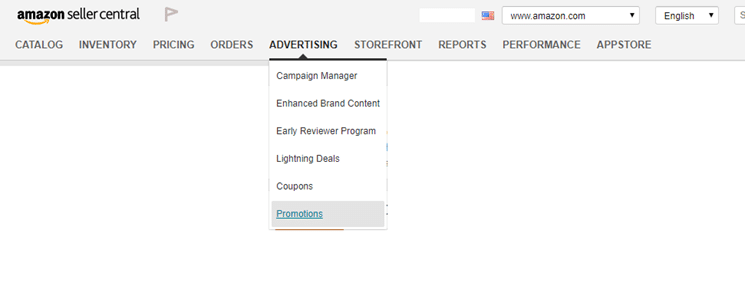
Log in to your Seller Central account and navigate to the Advertising tab. From there, select Promotions.
You will be taken to the promotions area, where you can create a new offer. For this guide, we’ll focus on creating a Percentage Off or Money Off promotion to provide shoppers with a specific discount.
Click the Create button to open the promotion setup page.
You’ll see three main sections when creating your promotion:
- Conditions: Determines which purchase requirements shoppers must meet to qualify for the promotion.
- Scheduling: Allows you to select when the promotion begins and ends.
- Additional Options: Provides settings that control how shoppers can redeem the promotion and how the offer is displayed.
Let’s go through each section step by step.
Step 1: Configure the Promotion Conditions
The Conditions section contains several options that determine how customers can qualify for your discount. Configure each setting according to the type of promotion you want to run.
1. Buyer Purchases
This option determines how many units a customer needs to purchase to qualify for the discount.
If you want to encourage customers to purchase multiple units, select an option such as 2 or more. If the promotion should apply when a shopper purchases just one unit, select 1.
2. Purchased Items
Next, select the products to which you want the promotion to apply.
Click Create a New Product Selection. This allows you to specify the SKUs or ASINs that should be included in your Amazon promotion.
From the available options, select SKU List and then choose Create Product Selection.
Enter a product selection name or tracking ID along with an internal description. The description is primarily for your own reference, so use something that makes it easy to identify the promotion later.
Carefully enter the SKUs for the products you want to include in the percentage-off promotion. You can find your product SKU and ASIN information within the Manage Inventory section of Seller Central.
After submitting the product selection, you’ll return to the promotion setup page. Select the product selection you just created from the appropriate drop-down menu.
3. Buyer Gets
The Buyer Gets section is where you specify the discount that customers will receive.
Choose the percentage discount you want to offer. For example, you may provide a 10%, 20%, or 30% discount depending on your promotional strategy and profit margins.
Make sure the discount is financially sustainable for your business before launching the promotion.
4. Applies To
The Applies To setting determines which products or items qualify for the promotion.
Select the appropriate option from the drop-down menu based on your promotional requirements. If you want the discount to apply to selected purchased items, choose the relevant purchased-items option.
If your promotion involves multiple products or requires certain products to be excluded, adjust the selection accordingly.
Step 2: Choose the Promotion Schedule
The Scheduling section determines how long your Amazon promotion will remain active.
Start and End Dates
Select the date and time when you want the promotion to begin and when you want it to expire.
It’s a good idea to schedule the promotion ahead of time rather than expecting it to become active immediately. Allow enough processing time so the promotion is ready when your planned campaign begins.
Internal Description
You can also add an internal description for the promotion.
This information is for your own reference and can help you identify the purpose of a particular promotion when managing multiple offers in Seller Central.
Tracking ID
Amazon provides a tracking ID for promotions, so you generally don’t need to create one manually unless the setup interface specifically asks you to provide one.
Step 3: Configure Your Promotion Redemption Settings
The additional settings are particularly important because they determine how shoppers can access and redeem your promotion.
Pay close attention to the default redemption setting. If you leave the promotion open to everyone, customers who aren’t part of your intended campaign may also be able to use the discount.
If you select a Group Code, one promotional code can be shared and redeemed by multiple customers. While this can be convenient for broader campaigns, sharing the code publicly could result in a large number of shoppers using the discount.
For promotions that need tighter control, consider using Single-Use Codes where available.
This option allows you to generate individual claim codes, giving you greater control over how the promotion is distributed.
You can also enable the option for one redemption per customer. This helps prevent the same shopper from repeatedly using the promotion.
Claim Code
For the claim code, you can allow Amazon to generate a code automatically or create your own code if the available settings allow it.
Choose a code that is easy to manage and identify, particularly if you’re running several promotions at the same time.
Claim Code Combinability
Pay attention to the Claim Code Combinability setting when creating your promotion.
Selecting Exclusive can help prevent customers from combining the promotional code with other eligible promotional offers, depending on Amazon’s current promotion rules and settings.
You can also review the Customize Message settings to control where promotional information appears.
If you don’t want the promotion details or claim-code information displayed publicly on the product detail page, adjust the relevant display setting before submitting the promotion.
Step 4: Protect Your Inventory
When offering a substantial discount, sellers should also consider how many units a single customer can purchase.
A heavily discounted promotion may attract customers looking to purchase large quantities. In some situations, this could result in a significant portion of your available inventory being purchased through the promotion.
To reduce this risk, you can place an order-quantity limit on the product.
From the Seller Central dashboard, go to Inventory and select Manage Inventory.
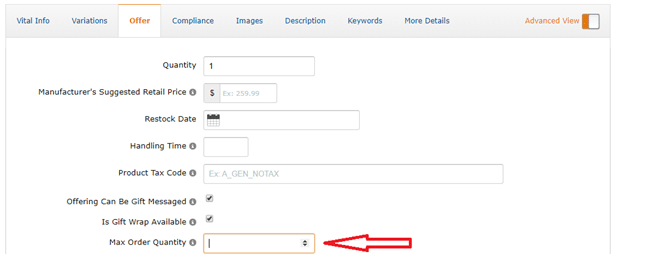
Locate the product you want to modify and open its offer settings. Depending on the current Seller Central interface, you may need to select the Offer tab or edit the product’s listing information.
Find the Maximum Order Quantity setting and enter the maximum number of units a customer can purchase in a single order.
For a highly controlled promotional campaign, setting the maximum quantity to 1 can help limit bulk purchases from individual customers.
Final Thoughts
Creating a percentage-off promotion on Amazon is relatively straightforward, but the settings you choose can have a significant impact on how the offer is distributed and redeemed.
Before launching your promotion, carefully review the discount amount, eligible products, campaign dates, redemption settings, and maximum order quantity. A well-structured promotion can help generate additional sales while giving you greater control over your promotional budget and inventory.
Once your percentage-off promotion is active, monitor its performance and review your sales activity to understand whether the campaign is achieving its intended purpose.