
Amazon’s U.S. marketplace features hundreds of millions of products, all organized within a large and detailed product category structure. This category tree makes it easier for shoppers to discover the products they need while also helping sellers organize and optimize their listings effectively. Understanding how Amazon’s category structure works is an important part of building a successful presence on the marketplace.
In this guide, we’ll explain Amazon’s product categories, how the category tree is organized, and how sellers can use it to improve their listings. Whether you’re an experienced Amazon seller looking to increase product visibility or simply want to understand how Amazon organizes its massive catalog, this guide will help you navigate the category system more effectively.
What Is Amazon’s Product Category Tree?
Amazon organizes its products through a hierarchical structure made up of categories and multiple levels of subcategories. These categories branch into increasingly specific product groups, creating a structure that resembles a tree.
When you explore Amazon’s product categories, you’ll notice that products are placed under relevant departments and subcategories based on their type and purpose. This organization allows shoppers to narrow down their searches and find relevant products without having to browse through unrelated listings.
The category structure also gives sellers a framework for placing their products in the most relevant areas of Amazon’s marketplace. Selecting the appropriate category and subcategory can make it easier for customers to discover a product when browsing or filtering search results.
How to Use Amazon’s Product Category Tree to Optimize Listings
If you have spent time working inside Amazon Seller Central, you may have encountered the term BTG, which stands for Browse Tree Guide. But what exactly does it mean, and how can it help with listing optimization?
A Browse Tree Guide (BTG) is a document that provides guidelines for assigning products to the appropriate categories and browse nodes on Amazon. The available BTGs can vary depending on the marketplace or country where you are selling.
The Browse Tree Guide can be particularly useful when determining where a product belongs within Amazon’s category structure. On Amazon, the term “browse” relates to the departments and category paths shoppers use to explore products. Customers can select a department and continue through different categories and subcategories to find what they need.
A BTG helps sellers identify the appropriate subcategory, also known as a browse node, for their products. Choosing the correct node ensures that a product is associated with the most relevant section of Amazon’s marketplace.
Why Is a Browse Tree Guide Required?
A Browse Tree Guide helps sellers determine the appropriate branch of Amazon’s category structure for their products. It contains recommended browse node IDs, which identify specific locations within Amazon’s category hierarchy.
These node IDs can be used when submitting product information through inventory files or other listing processes. Selecting the appropriate browse node helps ensure that products are assigned to a relevant category rather than being placed in an unrelated section.
Think of a BTG as a merchandising roadmap. It helps sellers understand where their products belong and how Amazon’s category structure is organized.
What Information Does a Browse Tree Guide Contain?
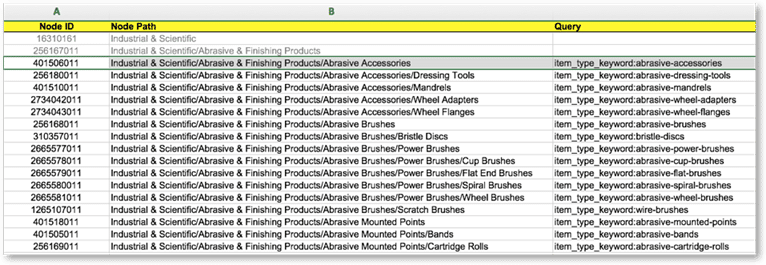
A Browse Tree Guide generally contains several important fields that help sellers understand Amazon’s category hierarchy. Three common elements include:
- Node ID: This is the unique identification number associated with a particular browse node or category path.
- Node Name: This identifies the name of the browse node or category. Each point within the category path represents a specific browse node.
- Terms of Use: This section provides information about the fields and terminology that should be used when assigning products to a particular browse path.
You can think of browse nodes as branches of a tree. Each subcategory creates another branch, becoming more specific until you reach the most appropriate endpoint for a particular product.
Placing a product in the correct browse node can make it easier for customers to discover the listing while browsing through Amazon’s categories and filters. It also helps ensure that your product information aligns with the structure Amazon uses to organize its catalog.
Before publishing a new listing, sellers should review the relevant category information and Browse Tree Guide where applicable. These resources can help sellers identify suitable categories, browse nodes, and relevant terminology associated with their products.
Using this information correctly can help ensure that a listing fits appropriately within Amazon’s category structure.
How to Use a Browse Tree Guide on Amazon
To work with a Browse Tree Guide, sellers can access Amazon Seller Central and look for the relevant inventory file templates and Browse Tree Guide resources available for their marketplace.
Once you locate the appropriate guide, download the one that most closely matches your product category.
Review the document carefully and identify the relevant keywords, node IDs, categories, and subcategories associated with your product. This information can then be used when preparing your product data and listing information.
The goal is to make sure your product is assigned to the most relevant location within Amazon’s category hierarchy.
Pre-Launch: Adding Your Products to Amazon Marketplace
Before your products go live, you need to provide Amazon with the necessary product information. Depending on your listing method and product type, inventory templates can be used to submit product data in bulk.
To access inventory upload options in Seller Central, navigate to:
Inventory → Add Products via Upload
From there, you can select the appropriate inventory template for your products.
After downloading the relevant template, complete the required fields with accurate product information. If your category requires browse node information, make sure the appropriate browse node ID identified from the Browse Tree Guide is included in the inventory file.
Once the completed file has been uploaded and processed, your products can appear on Amazon according to the information provided.
After your listings are live, you can review and make additional changes through Inventory → Manage Inventory. Depending on the type of information you need to update, you can edit the listing directly or submit an updated inventory file.
Create Captivating and Optimized Product Titles
Your product title is one of the most visible elements of an Amazon listing. It is often one of the first pieces of information shoppers see, making it an important part of your listing optimization strategy.
A clear and informative title should communicate what the product is while incorporating relevant information that helps shoppers understand its key characteristics.
The Browse Tree Guide can also help you identify the appropriate item type keyword for your product. This information can be useful when ensuring that your listing aligns with the relevant category structure.
Keep These Item Type Keyword Guidelines in Mind:
- Use the Item Type Keyword that corresponds with the relevant information in the Browse Tree Guide.
- Follow the required formatting for the keyword.
- Use specific and descriptive terminology that accurately represents your product.
- Make sure the selected keyword is relevant to the product and its intended category.
Once you have identified the appropriate item type keyword, the next step is conducting Amazon keyword research.
Rather than adding keywords randomly, focus on search terms that are closely related to your product and relevant to what potential customers are searching for.
Relevant keywords can help your product appear for appropriate customer searches and contribute to a more comprehensive listing.
When creating your product title, you should also consider your brand name and important product details. A well-structured title can help customers quickly understand what they are looking at.
Depending on your product, useful information may include:
- Brand name
- Primary product keyword
- Relevant search terms
- Model number
- Product variation
- Color
- Size
- Quantity
A basic title structure could look like this:
Brand Name + Primary Product Keyword +
Relevant Search Terms + Color + Quantity
The exact structure should depend on your product, category, and Amazon’s current title requirements. Avoid forcing keywords into the title simply to increase keyword usage. The title should remain clear, readable, and useful to shoppers.
Don’t Overlook Amazon Backend Keywords
Amazon listings also contain search terms that shoppers do not see directly. These backend keywords can provide additional opportunities to communicate relevant search information to Amazon.
Because these terms aren’t visible on the front end of the listing, sellers sometimes overlook them. However, using relevant and accurate search terms can help Amazon better understand the product and its relationship to customer searches.
The available backend search-term fields and character limits can vary based on Amazon’s current requirements and the product category, so sellers should always follow the latest Seller Central guidelines rather than relying on outdated formatting rules.
Keywords can also be selected with a specific customer audience in mind. These are sometimes referred to as target audience keywords.
Understanding your target customer can help you identify search terms that are relevant to the people most likely to purchase your product. For example, if you sell men’s fragrances, terms specifically associated with men’s fragrance products may be relevant depending on the product and search behavior.
However, keywords should always accurately describe the product rather than being added simply to target a particular audience.

Add Relevant Keywords to Your Listing Copy
Amazon bullet points are another important section of your product listing. They provide sellers with space to highlight key product features, benefits, specifications, and differentiating details.
Well-written bullet points can help shoppers quickly understand what a product offers and why it may be relevant to their needs. They can also provide opportunities to naturally incorporate relevant search terms that were not included in the product title.
Instead of filling your bullet points with repeated keywords, incorporate important terms naturally within useful and persuasive product information.
For example, if you have relevant keywords that could not be included naturally in your title, consider using them within a bullet point where they make sense.
The primary goal should always be readability and usefulness. Keyword stuffing can make your listing difficult to read and may create a poor customer experience.
When relevant keywords are incorporated naturally across your listing, they can help communicate product relevance while keeping the copy informative and easy to understand.
Conclusion
Understanding Amazon’s product category tree is an important part of creating well-structured product listings. By identifying the appropriate category, subcategory, and browse node, sellers can ensure that their products are placed in a relevant part of Amazon’s marketplace.
The Browse Tree Guide can help sellers identify appropriate browse nodes and item type information, while keyword research can help uncover relevant search terms for the listing.
Once you determine the right product category, review the applicable BTG, identify relevant keywords, and incorporate those terms naturally into your title, bullet points, and backend search terms.
A well-organized category structure combined with relevant, customer-focused listing content can give Amazon sellers a stronger foundation for product discoverability and listing optimization.