
Running an e-commerce business can be challenging without the right strategies in place. From processing orders to managing inventory and maintaining customer satisfaction, sellers have to stay on top of multiple responsibilities. A smooth order management process is essential for avoiding mistakes, protecting your seller reputation, and delivering a positive customer experience. Even a single negative review or poor customer interaction can affect how shoppers perceive your brand.
At the same time, managing customer demand continuously can make it difficult for Amazon sellers to take time off. Fortunately, Amazon vacation settings give sellers a practical way to temporarily pause seller-fulfilled listings while they are away. Using Amazon vacation mode, sellers can step away from their business for a short period without permanently removing their listings. This makes it easier to maintain a healthier balance between running a business and taking a well-deserved break.
Things to Do Before Taking a Vacation
Providing a reliable customer experience is one of the most important parts of successful order fulfillment. Sellers need to make sure orders are processed correctly and customer requests are handled on time to avoid unnecessary complaints or negative feedback. Although Amazon vacation settings can help pause new seller-fulfilled orders, sellers still need to prepare their accounts before leaving.
Before Changing Your Amazon Vacation Settings
- Complete Your Pending Orders: Before switching your listings to inactive, make sure all outstanding orders have been processed and shipped according to the promised delivery schedule. Changing your listing status does not cancel orders that have already been placed.
- Change Your Listing Status in Advance: Avoid waiting until the day you leave. It is better to switch your listings to inactive ahead of your vacation. This gives Amazon enough time to remove the offers from the relevant product pages and search results and reduces the chances of receiving last-minute orders.
- Set an Automatic Response: Buyers may still contact you while you are away. Setting up an automatic response lets customers know that you are temporarily unavailable and gives them an idea of when they can expect a response.
During the Inactive Period
- Respond to Buyer Messages and Requests on Time: Putting your listings on vacation mode does not eliminate your responsibility to handle customer communication. Continue monitoring buyer messages, return requests, claims, and other account-related issues within Amazon’s required response timeframes.
Pro Tip: Keeping customers informed can improve their experience even when you are temporarily away. A clear and helpful message can prevent confusion and set realistic expectations.
- Be Careful With Account Activity: Avoid unnecessary account activity or unusual login behavior while you are away. Continue accessing your Seller Central account in a normal and secure manner whenever you need to handle essential customer or account-related tasks.
Note: Even when your listings are inactive, you can still make certain changes to your listings. Depending on the type of change, updates may become visible when the listings are active again.
- Keep an Eye on Your Seller Central Account: Going on vacation does not mean you should completely ignore your account. Check Seller Central regularly, preferably through a secure mobile device, so you can stay informed about messages, returns, claims, and important account notifications.
- Use Automation Where Possible: Inactive listings do not prevent buyers from contacting you. Amazon may still require you to respond to customer messages, claims, or other issues during your time away. Automated responses can help communicate your availability and reduce customer confusion while you are on vacation.
Note: Amazon vacation mode primarily applies to Fulfilled by Merchant (FBM) offers. Fulfilled by Amazon (FBA) listings generally remain available because Amazon continues to store, fulfill, and ship those orders on your behalf.
How to Change Amazon Vacation Settings
Maintaining Amazon performance standards while taking time away from your business can be challenging. Amazon vacation settings make it easier for FBM sellers to temporarily make their seller-fulfilled listings inactive instead of manually removing individual listings.
When you return, you do not need to create your listings again. You can simply switch your listing status back to active, allowing your offers to become available again. This can be particularly useful when you are taking a short vacation or stepping away from your Amazon business for several days.
How to Turn On Amazon Vacation Mode
To activate vacation mode, follow these general steps in Seller Central:
- Log in to your Seller Central account and open Settings.
- Select Account Info from the available options.
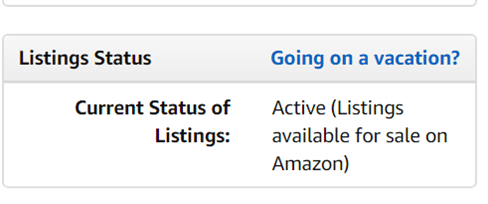
- Under Account Information, locate Listings Status.
- Select the option related to Going on vacation?
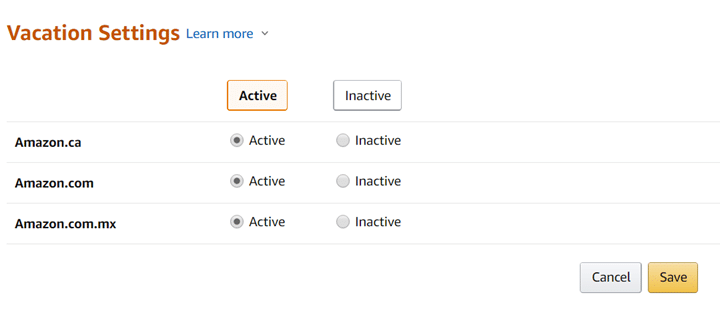
- On the Vacation Settings page, review the marketplaces where you sell.
- Change the listing status for the relevant marketplace to Inactive.
- Click Save to apply the changes.
If you sell across multiple Amazon marketplaces, make sure you update the listing status for each marketplace separately where necessary.
Once your listings are set to inactive, new seller-fulfilled orders should no longer be generated through those offers. Because it can take some time for listing changes to become visible across Amazon, it is best to make the adjustment before your vacation starts rather than at the last minute.
Amazon may also take some time to reflect the updated status across product detail pages and search results. Check your listings after making the change to ensure the inactive status has been applied correctly.
How to Turn Off Amazon Vacation Mode
When you are ready to resume selling, return to the same vacation settings section in Seller Central.
Select Active for the relevant marketplace and save the changes. Your seller-fulfilled listings can then become available again as Amazon processes the update.
As with activating vacation mode, it may take some time before your listings are fully visible and available across Amazon. Check your account and product pages after reactivating them to ensure everything is working as expected.
Keep in mind that vacation settings work differently for FBA offers because Amazon continues handling fulfillment for inventory stored in its fulfillment network.
Note: Access to certain listing and inventory settings may depend on your Seller Central user permissions.
An Alternative Way to Manage Your Vacation
Amazon vacation settings are not the only way to prepare your account for a short break. Depending on your business model and the length of your vacation, you may also consider adjusting inventory availability or handling times.
These alternatives can provide additional flexibility when completely deactivating your listings is not the most suitable option.
How to Adjust Inventory Settings
One approach is to manage the available inventory for your seller-fulfilled products.
You can access your inventory by going to:
Inventory → Manage Inventory
From there, you can adjust the available quantity for specific products. Setting inventory to zero can prevent additional orders from being placed for those listings until inventory is restored.
When you return to your regular operations, update the inventory quantity to reflect the stock you actually have available.
This method can work for sellers who want to temporarily stop accepting orders without changing the overall listing setup.
Changing Your Handling Time
Another option for a short break is adjusting the handling time for eligible listings. By increasing the handling time, sellers can provide themselves with additional time to process incoming orders.
To review your shipping and handling settings:
- Go to Settings in Seller Central.
- Open Shipping Settings.
- Review your General Shipping Settings and current handling time configuration.
- Depending on how your listings are managed, you may also need to update handling time at the individual listing level.
You can also navigate through:
Inventory → Manage Inventory → Edit Details → Handling Time
From there, update the handling time based on your planned schedule and operational capacity.
For sellers who manage listings through spreadsheets or inventory files, handling time may also be updated through the relevant upload template.
Adjusting handling time can be useful for a very short absence, but sellers should carefully consider whether customers are likely to accept the longer delivery timeframe. Delays that are not communicated clearly can result in poor customer experiences and negative feedback.
Once you return from vacation, remember to restore your normal handling times so your listings continue to reflect your standard fulfillment capabilities.
Conclusion
Taking time away from your Amazon business does not have to mean putting your entire operation at risk. Delayed responses, missed customer requests, and fulfillment problems can affect the shopping experience and potentially hurt your account performance.
With proper planning, Amazon vacation settings can give FBM sellers a practical way to temporarily pause new orders while they are away. Preparing pending orders, updating listing status in advance, monitoring customer communication, and using automation can make the process much easier.
For shorter vacations, sellers can also consider options such as adjusting inventory or extending handling times, depending on their business requirements. The most important step is to choose the approach that protects both your customers and your seller performance while giving you the freedom to take a break.
With the right preparation, you can step away from your Amazon store for a few days without constantly worrying about new orders, missed messages, or fulfillment delays.