
You’ve finally found the product you were looking for. The price is right, the item is available, and maybe it even comes with Prime delivery. You click “Add to Cart,” expecting it to work instantly, but nothing happens. Instead, you may see a frustrating message such as, “Sorry, we were unable to add this item to your cart.”
The Amazon failed to add item to cart error is more common than you might expect, and the platform rarely explains exactly what went wrong.
For shoppers, this can be incredibly frustrating, especially when you are ready to buy and suddenly cannot move forward with your purchase. The issue can occur whether you are using the Amazon app on iOS or Android, a mobile browser, or a desktop computer.
The problem can have several causes. Your cart may have reached its item limit, the product could be unavailable, your app cache may be corrupted, your login session could have expired, or Amazon itself may be experiencing a temporary technical issue. Since Amazon does not always provide a clear explanation, figuring out the cause can feel like trial and error.
That is why we created this guide. Whether you are shopping through the Amazon app, mobile browser, or desktop, you will find the most common causes of the error along with practical steps to get the Amazon add to cart function working again.

Common Reasons Why Amazon Failed to Add Item to Cart
Before getting into the solutions, it helps to understand why the failed to add item to cart Amazon error can happen. There is no single cause behind the problem, and identifying the likely reason can help you find the right solution faster.
Here are some of the most common reasons Amazon may prevent an item from being added to your cart.
1. Your Cart Has Reached Its Item Limit
Amazon places limits on the number of unique items that can be stored in a shopping cart. Most shoppers never come close to that limit, but large or long-standing carts can eventually run into it.
When your cart reaches the allowed limit, Amazon may prevent you from adding another item and display an error without clearly explaining why.
The easiest solution is to remove products you no longer need or move them to “Saved for Later.” You can also add products you are considering to your Amazon Wishlist instead.
2. The Item Is Out of Stock or Has Limited Availability
Sometimes the problem has nothing to do with your account or device. The product may simply be out of stock, unavailable for your location, or limited to fewer units than the quantity you are trying to purchase.
Check the product page carefully before attempting more complicated fixes. Look for stock messages, shipping restrictions, quantity limits, or changes in the seller’s availability.
If the listing says “Currently unavailable,” the issue is with the product rather than your Amazon account.
3. Corrupted App Cache or Browser Cookies
Amazon apps and web browsers store temporary data to improve performance and remember your sessions. Over time, that information can become outdated or corrupted.
When this happens, basic Amazon functions may stop working properly, including the ability to add products to your cart.
Clearing the app cache on Android or removing Amazon-related cookies from your browser can often resolve the issue. Keep your login details available before clearing stored browser data, as you may need to sign in again afterward.
4. Your Amazon App Is Outdated
Using an older version of the Amazon app can also cause unexpected problems. Amazon regularly releases updates to address bugs, improve compatibility, and fix performance issues.
If your app has not been updated recently, the add-to-cart feature may not work as expected.
Check the Google Play Store or Apple App Store to see whether a newer version of the Amazon app is available.
5. Login Session or Account Problems
Your Amazon session can occasionally become invalid or get stuck, especially if you have been logged in for a long time or recently installed an app update.
A faulty session may cause certain features to stop responding correctly even when the rest of the app appears normal.
Signing out of your Amazon account and signing back in creates a fresh session and can resolve these account-related glitches.
6. JavaScript or Browser Extension Conflicts
When you use Amazon through a web browser, JavaScript is responsible for powering many interactive features on the website, including the add-to-cart functionality.
Browser extensions, ad blockers, privacy tools, or other scripts can sometimes interfere with these functions. In some cases, the button may appear to work but fail to complete the request.
Try opening Amazon in an incognito or private browser window. This provides a quick way to determine whether an extension or stored browser data is causing the problem.
7. Expired or Invalid Payment Information
An outdated or invalid payment method can sometimes create problems during the shopping process. For example, your saved card may have expired, been replaced, or become unavailable.
Check your payment settings by going to:
Account & Lists → Your Account → Payment Options
Review your saved cards and payment methods to make sure the information is current.
8. Amazon Is Experiencing a Temporary Technical Problem
Not every Amazon error is caused by your device or account. Amazon can occasionally experience temporary technical problems that affect shopping, checkout, account functions, or other services.
When this happens, multiple users may experience the same add-to-cart problem at the same time.
Checking an outage-monitoring website such as Downdetector can help you determine whether Amazon is experiencing a broader issue.
9. The Product Does Not Have an Active Buy Box
The Buy Box is the section of an Amazon product listing that normally includes the main “Add to Cart” and “Buy Now” options.
In some situations, a product may remain visible on Amazon even though there is no active Buy Box winner. This can happen because of seller, pricing, inventory, or listing-related issues.
When that occurs, check the Other Sellers on Amazon section and see whether another seller is offering the same product with an active purchase option.
How to Fix Failed to Add Item to Cart on Amazon
Now that you know the most common causes, it is time to troubleshoot the problem. The following fixes cover everything from simple cart checks to app and browser-related solutions.
Fix 1: Check Your Cart and Product Availability
Start with the simplest solution before changing any settings.
Open your Amazon cart and see whether it contains a large number of products. Remove unnecessary items or move them to “Saved for Later” to create room.
Then return to the product page and confirm that:
- The product is currently in stock.
- The quantity you selected is available.
- The listing is still active.
- The item can be shipped to your location.
If Amazon shows that the product is unavailable, no setting on your device will resolve the problem. You will need to wait for the item to become available or choose another seller.
Fix 2: Restart the Amazon App
A complete app restart can eliminate temporary glitches that develop during a long session.
Simply returning to your phone’s home screen is not enough. Close Amazon completely and then reopen it.
On iPhone, swipe up from the bottom of the screen, locate Amazon, and swipe it away from the recent apps list.
On Android, open the Recent Apps screen and swipe the Amazon app away.
Wait a few seconds before opening Amazon again, then try adding the item to your cart.
Fix 3: Sign Out and Sign Back In
If restarting the app does not help, your Amazon login session could be the problem.
Sign out of your Amazon account, close the app, and then sign back in. This forces Amazon to establish a new session and can resolve temporary account or authentication issues.
Once you are logged back in, return to the product page and test the “Add to Cart” button again.
Fix 4: Clear the Amazon App Cache on Android
Android users can try clearing the Amazon app cache if the issue continues.
Press and hold the Amazon app icon and select App Info. Then open:
Storage → Clear Cache
The exact menu names can vary slightly depending on your Android device.
Clearing the cache removes temporary files that may have become corrupted. It does not normally remove your Amazon account or previous orders, although clearing app data rather than just the cache may require you to sign in again.
Fix 5: Clear Amazon Cookies on Your Browser
If you are shopping through a desktop or mobile browser, outdated cookies may be interfering with Amazon’s shopping functions.
You can clear stored website data using your browser’s privacy settings.
Chrome: Settings → Privacy and Security → Clear Browsing Data → Cookies and Other Site Data
Firefox: Settings → Privacy & Security → Cookies and Site Data → Clear Data
Safari on Mac: Safari → Settings → Privacy → Manage Website Data
Edge: Settings → Privacy, Search, and Services → Clear Browsing Data
After clearing the data, reopen Amazon, sign back into your account, and try adding the product again.
Fix 6: Update the Amazon App
An outdated Amazon app can contain bugs that have already been fixed in newer versions.
On Android, open the Google Play Store, search for Amazon, and select Update if a new version is available.
On iPhone, open the App Store, tap your profile icon, and check the available updates. Update Amazon if it appears in the list.
Once the update is installed, reopen the app and test the cart again.
Fix 7: Check Your Internet Connection
A slow or unstable internet connection can prevent your add-to-cart request from reaching Amazon successfully.
Try switching between Wi-Fi and mobile data. You can also test another internet-dependent app to see whether your connection is having problems.
Another simple option is to enable airplane mode for about 10 seconds and then turn it off. This can force your device to establish a fresh network connection.
After reconnecting, return to Amazon and try adding the item again.
Fix 8: Use Another Device or Browser
When the problem continues, test Amazon somewhere else.
If the Amazon app is failing, open Amazon through Chrome, Safari, or another mobile browser. If Amazon is not working properly on your desktop browser, try another browser or use an incognito/private window.
This can help determine whether the problem is specific to your app, browser, device, or account.
It is especially useful when browser extensions, cached files, or configuration settings may be interfering with Amazon.
Fix 9: Verify Your Payment Information
Review your saved payment methods to make sure there are no outdated or invalid details.
Go to:
1. Account & Lists → Your Account
2. Select Payment Options
3. Review your saved payment methods
4. Update any expired information or add a new payment method
Once the payment information is current, return to the product page and try adding the item again.
Fix 10: Reinstall the Amazon App
When all other fixes fail, reinstalling the Amazon app can provide a clean start.
Delete the Amazon app from your device and reinstall the latest version from the appropriate app store.
After installation, sign back into your account and try the add-to-cart function again.
A fresh installation can remove corrupted files or configuration issues that may not have been resolved by simply restarting or clearing the cache.
When Is Amazon Itself the Problem?
Sometimes, there is nothing wrong with your device, account, or internet connection. Amazon itself may be experiencing a temporary technical problem.
Because Amazon operates at a massive scale, occasional service disruptions can affect shopping and other features. During an outage, users in different locations may experience similar errors at the same time.
Before spending a long time changing settings on your device, check whether other Amazon customers are reporting the same problem.
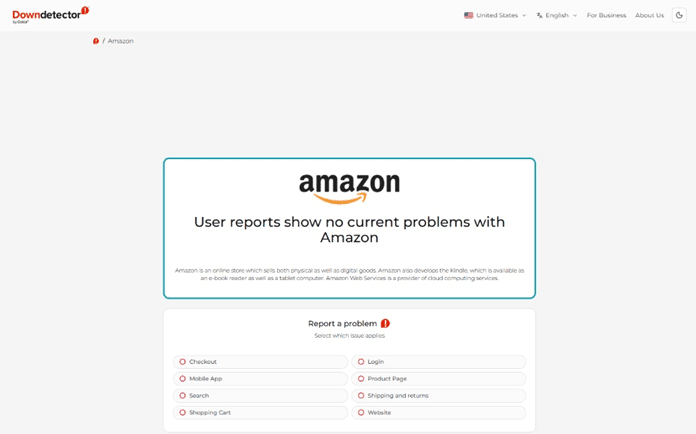
1. Check Downdetector
Downdetector can help you determine whether Amazon is experiencing a widespread service disruption.
Look at the recent report activity and see whether there has been a sudden increase in complaints. You can also review the types of problems users are reporting to determine whether the issue involves the website, app, login, checkout, or another feature.
2. Check Social Media and Online Communities
Social media platforms can provide useful clues when Amazon is experiencing a broader technical problem.
Search for phrases such as “Amazon cart not working” or “Amazon add to cart error.” If many shoppers are posting about the same issue within a short period, there is a good chance the problem is not limited to your device.
Reddit and other online communities can also help you find discussions from users experiencing similar problems and identify whether the issue affects the app, browser, or a specific region.
3. Contact Amazon Customer Support
When you have tried the common fixes and the problem still exists, contact Amazon Customer Service directly.
In the Amazon app, open the customer service section and choose the appropriate shopping or account-related issue. You can then request additional assistance or use live chat when available.
Amazon support may be able to determine whether there is an account-specific issue or a broader technical problem affecting your shopping experience.
Final Thoughts
The Amazon failed to add item to cart error can be frustrating, but it does not necessarily mean that anything is seriously wrong with your account.
Start by checking the simplest possibilities. Make sure your cart has available space, verify that the product is in stock, and confirm that your Amazon app is up to date.
If that does not solve the problem, work through the next steps by restarting the app, signing out and back in, clearing your cache or browser cookies, checking your internet connection, and reviewing your payment information.
When the issue continues across multiple devices or browsers, check whether Amazon is experiencing a wider outage. Downdetector, social media, online communities, and Amazon Customer Service can help confirm whether the problem is on Amazon’s side.
In some cases, using another browser, trying the “Buy Now” option, or saving the product to your Wishlist and returning later can be a temporary workaround.
The good news is that most add-to-cart problems are temporary and can be resolved once you identify what is causing them.